





About Click Shop
From ModrinthA simple, innovative, highly customizable shop plugin.
WARNING: Version 1.0 is not compatible with version 0.1! Before updating: back up and remove the folder “plugins/ClickShop”. All shop data will be lost, so collect your earnings and remove all shops in advance.
What is ClickShop?
- ClickShop is a highly customizable and easy to use shop plugin, made primarily for SMP servers.
- TRAILER: https://www.youtube.com/watch?v=FcDirAUOClQ&ab_channel=Clickism

Features
- __NEW in 1.0:__
- Multi-language support: English & German
- Two new background themes: Mosaic & Checkerboard
- Custom shop names
- Add a sale text to your shop!
- Select different buy sounds
- Effortless usage with no commands.
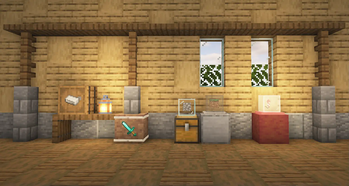
- Custom product displays.
- Custom color themes
- Supports custom currencies.
- Ability to sell various products
- Be notified when your shop runs out of stock
How to use
Creating a shop
- To create a shop, simply click on a chest or a barrel with a sign in your hand (any wood)

- Then, put the price and products you want to sell into their areas, and click "Create Shop".

__Controls:__
- Left click with an item to place it.
- You can right click with an empty hand to half the amount of items.
- Right click with the same item to increase the amount by one.
Editing the shop
- After creating a shop, Right Click on your shop to access it.
- Here, you can customize your shop, change its settings and much more!
Stocking
- You can stock the shop's inner storage by clicking "Stock Chest" and putting the items in the inventory.


Stockpiles
- If you don't want to constantly top up the shop's inner storage, you can connect a stockpile
- To add a stockpile, click "Connect Stockpile" in the shop interface.

- Now walk around and click on a (double) chest or a barrel.

- Congrats! You connected a stockpile. Your shop will automatically sell items out of your stockpile(s).
Earnings piles
- Similar to a stockpile, you can connect an earnings pile to multiple shops and collect all their earnings from a single spot.
- To connect an earnings pile, click "Connect Earnings Pile" in the shop interface and click on an Ender Chest

- To access the earning pile interface, you can Shift + Right click on the Ender Chest. (Without shifting, you can simply use it as an ender chest)
- Alternatively, you can add shops to your earnings pile from this interface.
- To do that, click "Connect Shop" and click on a valid shop to be able to collect earnings from it.

Collecting your earnings
- To collect your earnings from a single shop, open the shop interface and click on "Collect Earnings".
- To collect earnings from multiple shops at an earnings pile, Shift + Right click to access the earnings pile interface, there you can click on "Collect Earnings".

Changing price & products
- To change the price and products you're selling at a shop after creating it, click on "Change Price and Products"

- You can modify the price and products as you want and click "Save Changes to confirm it.

- You can also delete your shop in this menu by clicking "Delete Shop"

- You will then have to confirm again to delete your shop.

Shop Settings
- You can adjust various settings through the menu "Settings".
- Such as enabling/disabling buy notifications and stock warnings.


Customization
NEW: Custom Shop Name
- You can now add a custom shop name to your shops!
- Go to "Customize Shop" and click "Set Shop Name" and enter your shop name in chat.


Changing Background Theme & Buy Sound
- To change the color theme of your shop, click "Customize Shop" from the main shop interface, click "Theme & Sound Settings" and choose on any color theme you want from the top row.


- Click "Change Buy Sound" to change the shop's buy sound. This sound will be played to them when people buy from your shop.

Changing Shop Block
- To change the shop block, click "Customize Shop" from the main shop interface and click on "Change Shop Block" with the block you want.


Glass Displays
- To add a glass display, click "Customize Shop" from the main shop interface and click "Build Glass Display"
- You can click on "Change Glass" with a colored glass block in your hand to change the display glass color.
- You can click on "Change Base" with a block in your hand to change the display base.
- You can add/remove a backlight to your glass display by clicking "Add Light" or "Remove Light".


Highlights
From source dataGame versions
Supports 23 Minecraft versions, the newest being 26.2.
Loaders
Runs on Bukkit, Paper, Purpur and Spigot.
Footprint
Rated a light load on a server.
What kind of mod it is
From the catalogListed on Modrinth as “Mods”
Economy & shops
Currencies, shops, trading and rewards.
Runs on your server
From source side supportModrinth lists Click Shop as required on the server. Check its Modrinth page to see whether players need it too.
Compatibility
- Game
- Minecraft
- Loaders
- BukkitPaperPurpurSpigot
- Runs on
- Serverrequired on the server
- Game versions
- 26.2 and 22 earlier
Verified at the source
- ✓ModrinthOfficial listing, checked 2026-10-01Open ↗
- ✓AuthorClickism, as published on Modrinth
- ✓LicenseLicenseRef-All-Rights-ReservedFree