
Vintage Story - Mod Organizer 2 Support Tools
Adds support for using and installing vintage story mods in mod organizer 2.
Description
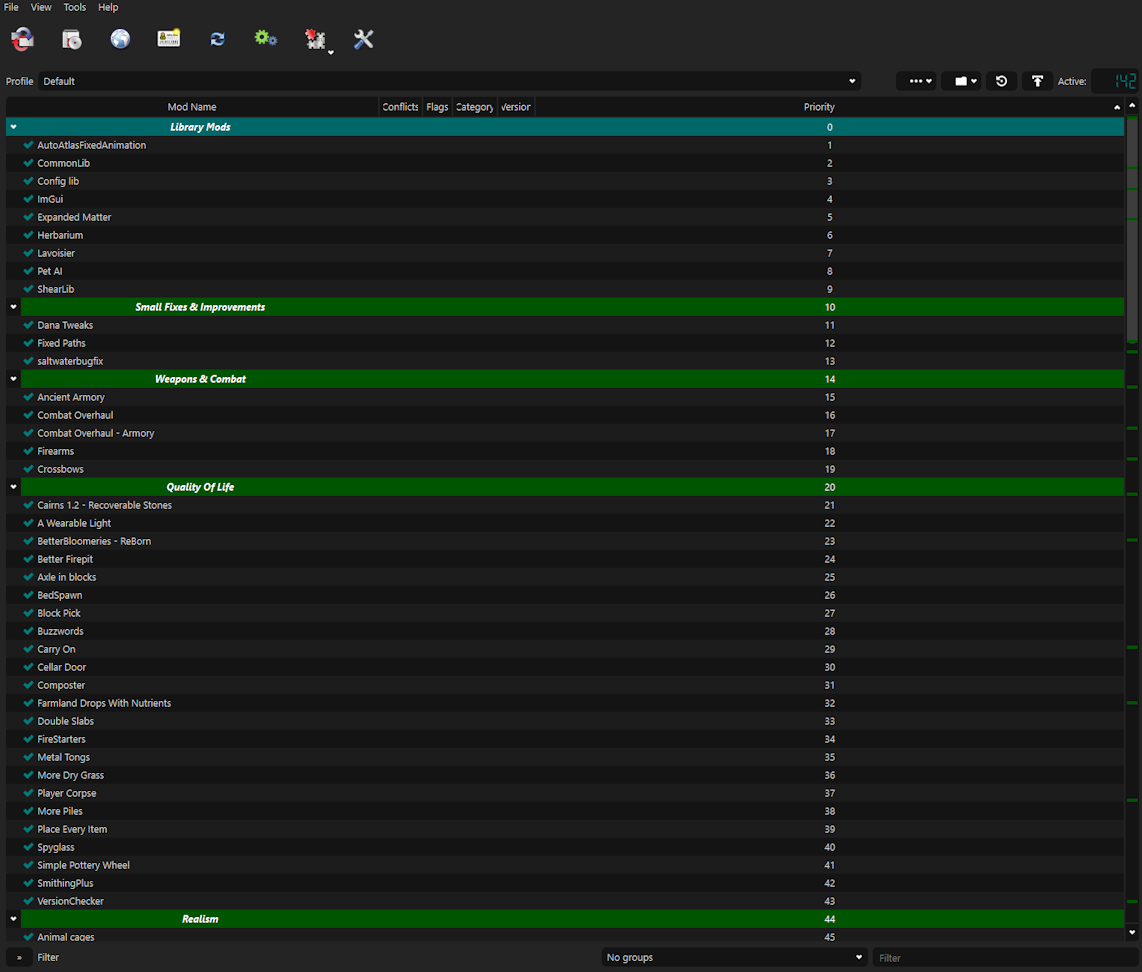
<h1><span style="background-color: #e74c3c;"><strong>Read the installation instructions carefully</strong></span></h1> <p> </p> <p>This suite adds support for vintage story in mod organizer 2 (MO2) and offers extra functionality.<br>Using this tool, you can more easily organize your mods and manage different mod presets and profiles.</p> <p> </p> <p> </p> <p><strong>Features:</strong></p> <ul> <li>Easily install mods in MO2</li> <li>Organize your mods in any order you'd like</li> <li>Add seperators to categorize your mods.</li> <li>Add notes to any mod to help organize.</li> <li>Use different profiles for different modpack installations.</li> <li>Install mods directly from the modDB using 1-click-install</li> <li>Update mods with 1-click-install</li> <li>Manage mod config presets</li> </ul> <p> </p> <p> </p> <div class="spoiler"> <div class="spoiler-toggle">Spoiler! <strong>How it works: (not important if you don't care)</strong></div> <div class="spoiler-text"> <p>When you install a mod with MO2 it isn't actually added to vintage story's mods folder. Rather, it has it's own seperate folder inside the MO2 program.</p> <p>MO2 uses a virtual file system. This means that when you start vintage story, it will take all the mods you installed through MO2 and makes virtual links to<br>vintage story's mods folder. This means that vintage story will think the files are in the right place when physically, they're installed in MO2. Once you close down vintage story, all the virtual links are removed again and you will have a clean VS installation.</p> </div> </div> <p> </p> <p> </p> <p> </p> <p><strong>How to install:</strong></p> <p>Obviously, it requires <a href="https://github.com/ModOrganizer2/modorganizer/releases" target="_blank" rel="noopener"><strong>MOD ORGANIZER 2 </strong></a>, Scroll down to the downloads and download either the 7z file or exe file to install.</p> <p>I recommend getting the 7z file and extracting it to it's own folder. This helps with isolating functionality between different MO2 instances.<br>Download the archive here and put the contents in your MO2 installation. It should be 2 folders: "plugins" and "Vintage Story MO2 Support"</p> <p><br>Just point MO2 to your vintage story install folder and it should automatically use the right folders for mods.<br>When you open it for the first time it should give you a short tutorial on how to use MO2.</p> <p><strong>IMPORTANT!</strong><br>To launch the game you will have to add the executable in a special way.<br>First, press the button with the cogs. Select vintage story in the list. <br>"Binary" needs to be pointed to your dotnet.exe. This is most likely installed at "C:\Program Files\dotnet\dotnet.exe" (don't add the quotation marks)<br>"Start in" needs to be pointed to the folder where dotnet.exe is located. This is the same as the binary, just without the \dotnet.exe at the end.<br>Finally, At "Arguments", point it to "Vintagestory.dll" located in you vintage story installation folder. It'll be something like "C:\Games\Vintagestory\Vintagestory.dll". This DOES need to be in quotation marks.</p> <p> </p> <p><strong>How to use:</strong></p> <ul> <li><strong>Setting up 1-click install:</strong><br>Run VS MO2 Manager.exe, enter both your Vintage Story installation path & your MO2 Instance path by using the "Browse" buttons. <strong>(IMPORTANT: POINT THE MO2 PATH TO THE VINTAGE STORY INSTANCE, IF YOU'RE USING A GLOBAL INSTALLATION, THIS IS NOT THE MO2 INSTALLATION.)</strong><br>If you're not sure, you can open mo2 and click the little folder icon to the right of the profile selection and click on "Open Instance Folder". This shoudld contain a mods and dowloads folder besides a bunch of other. This is where you should point it.<br><br>Now you can press the "set ModDB Protocol" button and it will setup the program to use MO2 to install mods instead of the default vintage story.<br>To reset the behaviour back to defauly, simply click the "Reset ModDB Protocol" Button.<br><br>Now, when you press a 1-click install link on ModDB it will download the mod and move it into the appropriate folder in MO2. You might have to refresh MO2 to see the effect.<br>By default, it will keep the old version in a folder in case you want to quickly revert.<br><br>Optionally, you have the choice to have old versions deleted on downloading a new version, effectively updating the mod.<br>You also have the option to keep any downloaded archives in MO2<br>Simply tick the boxes to make your choice.</li> </ul> <p> </p> <ul> <li><strong>Manually installing mods:</strong><br>Included in this package is a custom installer plugin for MO2.<br>This means that, when installed, whenever you install a mod through MO2 manually, it will simply make a new mod and move the archive to the correct folder without unpacking.<br><br>To do this: Click the second button on the top toolbar with the disk icon. Point MO2 to the archive you want to install. The installer will take it from here and your mod will be installed correctly.<br><br></li> <li><strong>Managing config presets:</strong><br>You can manage different mod config presets using the tool as well.<br>When first starting the tool, the dropdown menu will be empty. To save your current config files, press the "Save current set" button and enter a name.<br>This will make a copy that you can always return to. Make as many presets as you like.<br><br>If you want to load a preset you've made, select your preset in the dropdown menu and press the "Load selected set" button. This will make a backup of the files currently present in your mod config folder in case you didn't mean to load a new one<br>It will then remove all old config files and copy all files of the selected preset into your mod config folder.<br><br>Highly recommended to use in combination with MO2's profiles feature so you can match modlists with config presets</li> </ul> <p> </p> <ul> <li><stron
Ratings & reviews
Sign in to leave a rating or comment.