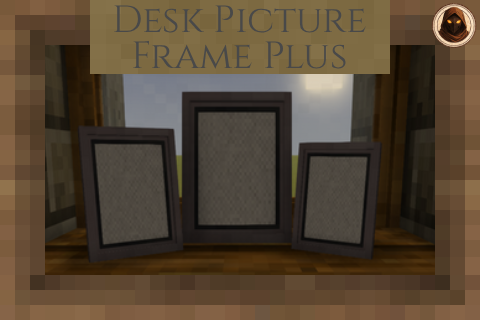
Desk Picture Frame Plus
Adds Desk Picture Frames and Wall Frames - Can add your own images via the mod config folder
Description
<div style="background-color: #1e1e1e; color: #f0f0f0; font-family: Georgia, serif; padding: 20px; line-height: 1.6; max-width: 1000px; margin: 20px auto;"><div style="border-bottom: 3px solid #b5893d; padding-bottom: 20px; margin-bottom: 30px; text-align: center;"><h1 style="color: #b5893d; font-size: 2.5rem; margin: 0 0 10px 0; text-transform: uppercase; letter-spacing: 2px;">Desk Picture Frame Plus</h1> <p style="color: #b0b0b0; margin: 0;">Metal frames that show your own pictures, chosen in game</p> </div> <div style="background-color: #2a2a2a; border: 1px solid #7a5c28; padding: 20px; margin-bottom: 30px; border-radius: 6px;"> <h2 style="color: #b5893d; margin: 0 0 20px 0; font-size: 1.5rem; text-transform: uppercase; font-weight: bold; text-decoration: underline;">Requirements</h2> <div style="margin-bottom: 15px;"><a style="display: inline-block; background-color: #3a3a3a; border: 1px solid #b5893d; color: #d1a457; padding: 5px 12px; margin-right: 10px; margin-bottom: 10px; text-decoration: none; font-weight: bold; border-radius: 4px; font-size: 0.9rem;" href="https://mods.vintagestory.at/attributerenderinglibrary" target="_blank" rel="noopener">Attribute Rendering Library</a></div> </div> <div style="margin-bottom: 30px;"> <h2 style="color: #b5893d; margin-top: 40px; margin-bottom: 20px; font-size: 1.5rem; text-transform: uppercase; font-weight: bold; text-decoration: underline;">How It Works</h2> <p style="margin-top: 0;">Drop your PNG files into one folder, then sneak and right-click any frame to choose which picture it shows. That is the whole thing - no unzipping the mod, no numbered slots to work out, no restarting the game</p> <ul style="list-style-type: none; padding-left: 0; margin: 10px 0;"> <li style="position: relative; padding-left: 25px; margin-bottom: 10px;"><span style="color: #b5893d; font-weight: bold; font-size: 1.2rem; position: absolute; left: 5px; top: -2px;">•</span> <strong>Your pictures live here:</strong> <code style="background-color: #2a2a2a; padding: 2px 4px; border-radius: 4px; color: #d1a457;">ModData/deskpictureframe/userimages/textures/pictures</code> - name the files whatever you like</li> <li style="position: relative; padding-left: 25px; margin-bottom: 10px;"><span style="color: #b5893d; font-weight: bold; font-size: 1.2rem; position: absolute; left: 5px; top: -2px;">•</span> <strong>Add a picture while playing</strong> and it is there the next time you open the picker</li> <li style="position: relative; padding-left: 25px; margin-bottom: 10px;"><span style="color: #b5893d; font-weight: bold; font-size: 1.2rem; position: absolute; left: 5px; top: -2px;">•</span> <strong>A frame keeps the picture you gave it</strong> - editing a file no longer changes every frame you have ever placed, and a frame you pick up and put down again still shows the same picture</li> <li style="position: relative; padding-left: 25px; margin-bottom: 10px;"><span style="color: #b5893d; font-weight: bold; font-size: 1.2rem; position: absolute; left: 5px; top: -2px;">•</span> <strong>Sort them into folders</strong> if you have a lot - the picker gets a folder chooser, and you start with empty Landscape, Portrait and Square folders to use or ignore</li> </ul> </div> <div style="margin-bottom: 30px;"> <h2 style="color: #b5893d; margin-top: 40px; margin-bottom: 20px; font-size: 1.5rem; text-transform: uppercase; font-weight: bold; text-decoration: underline;">Picture Rules</h2> <ul style="list-style-type: none; padding-left: 0; margin: 10px 0;"> <li style="position: relative; padding-left: 25px; margin-bottom: 10px;"><span style="color: #b5893d; font-weight: bold; font-size: 1.2rem; position: absolute; left: 5px; top: -2px;">•</span> <strong>PNG files only</strong>, up to <strong style="color: #b5893d;">1 MB</strong> each</li> <li style="position: relative; padding-left: 25px; margin-bottom: 10px;"><span style="color: #b5893d; font-weight: bold; font-size: 1.2rem; position: absolute; left: 5px; top: -2px;">•</span> <strong>Up to <span style="color: #b5893d;">480 x 320</span> pixels</strong> by default, or <strong style="color: #b5893d;">320 x 480</strong> standing up - a ceiling rather than a required size, so anything smaller is used as it is. <strong>A server owner can change this</strong>, and their figure is the one that counts when you play there</li> <li style="position: relative; padding-left: 25px; margin-bottom: 10px;"><span style="color: #b5893d; font-weight: bold; font-size: 1.2rem; position: absolute; left: 5px; top: -2px;">•</span> <strong>A frame only offers pictures the right way round for it</strong> - the picker says which way it wants, and squares are offered either way</li> <li style="position: relative; padding-left: 25px; margin-bottom: 10px;"><span style="color: #b5893d; font-weight: bold; font-size: 1.2rem; position: absolute; left: 5px; top: -2px;">•</span> <strong>Anything skipped is explained</strong> - the picker counts what was left out and the log names the files, so a picture is never just missing</li> <li style="position: relative; padding-left: 25px; margin-bottom: 10px;"><span style="color: #b5893d; font-weight: bold; font-size: 1.2rem; position: absolute; left: 5px; top: -2px;">•</span> <strong>Up to 250 pictures</strong> loaded from your folder, which you can change in the settings</li> </ul> <p style="margin-bottom: 10px;"><strong>The two limits are separate, and neither predicts the other.</strong> PNG squeezes flat colour brilliantly and photographic detail hardly at all - a 2560 x 1440 game screenshot can be 798 KB while 1920 x 1080 artwork is 3.1 MB. So making a picture bigger on screen does not make a heavy one fit; if a picture will not show, make it smaller before dropping it in</p> <p style="color: #b0b0b0; font-style: italic; margin-bottom: 0;">The size limit is not fussiness - every picture becomes a real texture in the game's atlas, so one photo costs memory for everybody who can see the frame, not only for you</p> </div> <div sty
Ratings & reviews
Sign in to leave a rating or comment.